

IoT Lighthouse is a powerful tool for managing 1NCE IoT devices.
With simple API user registration, you can easily monitor device status, manage multiple profiles, and track device location.

IoT Lighthouse

Quick Start Guide

1. Install the App
• Download and install the IoT Lighthouse app on your device from the App Store or Google Play.
2. Register Your 1NCE API User
• Log in to the 1NCE portal and create a new API user.
• Copy your generated API key.
• Open the IoT Lighthouse app and paste the API key into the designated field.
3. Add Your IoT Devices
• In the 1NCE portal, navigate to the SIM Management section.
• Locate the device you wish to add and copy its ICCID.
• In the IoT Lighthouse app, tap the ”+” button to add a new device.
• Paste the ICCID into the provided field and enter a name for your device (e.g., “Temperature Sensor 1”).
• Tap “Save” to add the device to your dashboard.
• Repeat for each device you want to monitor and manage.
4. Explore New Features
• Use the Find SIM option to view all registered SIMs in your account.
• Access SIM Location to display device locations on an interactive map.
• Utilize the Send SMS function to send SMS messages and review your messaging history.
• Leverage the Device Controller to send UDP data to devices (integrating 1NCE OS functionality).
5. Enjoy Enhanced Functionality
• Benefit from updated label functionality for a cleaner interface.
• Experience an improved connection reset process for more reliable performance.
• Easily toggle activation status and IMEI lock for your devices directly within the app.
6. Start Monitoring and Managing
• Once setup is complete, begin monitoring the status, telemetry data, and locations of your IoT devices, and manage them seamlessly through your dashboard.
Key Features
In-Depth Device Management (Free functions)

• Monitor IoT Device Status: Get real-time status updates for all your connected devices.
• Updated Label Functionality: Enjoy a more intuitive and cleaner interface with improved label management.
• Improved Connection Reset Process: Benefit from a more reliable connection reset process that minimizes downtime.
• Toggle Activation & IMEI Lock: Easily control device activation status and manage IMEI lock settings directly from the app.
• Manage Multiple Profiles: Organize your devices into multiple profiles for streamlined monitoring.
• Set Custom Timezones: Adjust time settings for each device to match your local time.
Enhanced Connectivity and Control (Premium functions)
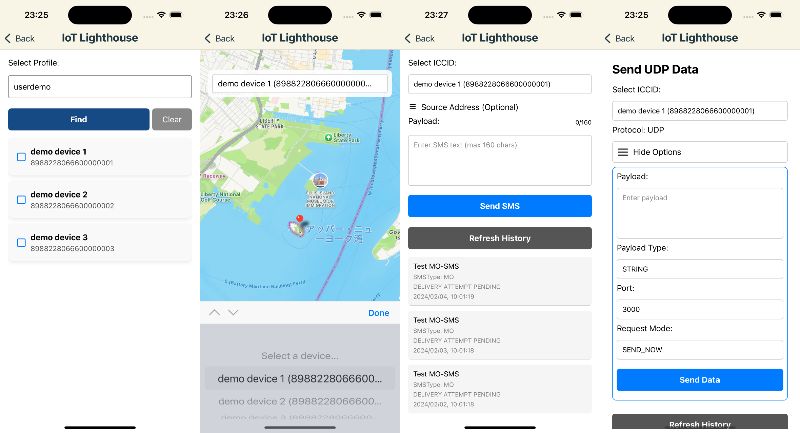
• Find SIM: Quickly view all registered SIMs in your account.
• SIM Location: Access an interactive map that displays the location of each device.
• Send SMS: Communicate directly with your devices by sending SMS messages and reviewing message history.
• Device Controller: Remotely send UDP data to your devices—perfect for leveraging 1NCE OS functionality.
Frequently Asked Questions (FAQ)
How do I add a new IoT device?
To add a new IoT device, go to the “Devices” tab and click the “+” button. Enter the device information and click “Save”.
How can I change my timezone settings?
To change your timezone settings, go to the “Settings” tab and select your desired timezone from the dropdown menu.
What do I do if my device is not connecting?
If your device is not connecting, first check that it is powered on and within range of a cellular network.
If the problem persists, contact our support team for assistance.
Data Storage & Security
Where are my API user and password stored?
Your API user ID and password are securely stored only on your smartphone, using Apple’s built-in secure storage mechanisms.
They are never transmitted to or stored on our servers.
🔒 How is my data protected?
Your data is protected by Apple’s iOS security architecture, including:
- App Sandbox – Each app runs in an isolated environment and cannot access data from other apps
- Secure Local Storage – Data is stored inside the app’s private container
- OS-level encryption – iOS encrypts app data at rest automatically
- No third-party access – Other apps cannot read your data
📘 Apple official documentation:
- App Sandbox https://developer.apple.com/documentation/security/app-sandbox
- Protecting user data https://developer.apple.com/documentation/security/protecting-user-data-with-app-sandbox
🛡️ Do you store any user data on your servers?
No.
We do not store:
- API usernames
- API passwords
- Authentication tokens
- Device identifiers
- Personal usage data
All sensitive information remains only on your device.
This follows Apple’s recommended privacy-first design.
📘 Apple Privacy Overview https://developer.apple.com/privacy
🔐 What happens if I delete the app?
If you uninstall the app:
- All stored credentials are permanently deleted
- No data remains on our servers
- Reinstallation requires re-entering credentials
This ensures complete user control over personal data.
✅ Why this approach is secure
Our design follows:
- Apple’s App Sandbox security model
- iOS Data Protection & encryption standards
- Zero-knowledge principle (we cannot access your data)
✔ No cloud storage
✔ No background tracking
✔ No third-party sharing
✔ No hidden data collection
Support and Resources
- Contact our support team: iotlighthouse@inter-care.info
Privacy Policy and Terms of Use
Read our Privacy Policy